When a CRO or performance agency hands a landing page to an outside developer to take from Figma to Unbounce, two things matter: the page has to match the approved design exactly, and it has to work on launch day. A missed breakpoint or a form that doesn’t submit costs the client money and costs the agency trust.
This is the process we follow when we take an approved Figma or Adobe XD design and build it in Unbounce, from the files we ask for to the checks we run before handover. You can use it as a checklist for your own team or for any partner you work with.
We’ve built more than 500 Unbounce pages for agencies, marketplace clients and direct clients. The same few gaps come up again and again, so we plan for them before the build starts rather than discovering them halfway through.
1. What to send before the build starts
Most delays in a design-to-build project come from missing files, not from the build itself. Before we start, we ask for:
- The approved design for desktop and, ideally, mobile. If there’s no mobile design, agree how sections should stack before work starts.
- Final copy and assets: images, icons, logos and fonts, exported at the right size.
- Access to the client’s Unbounce account as an invited user. Shared passwords are a security risk and make it hard to remove access later.
- Tracking details: pixel IDs, the conversion events you want, UTM requirements and where form leads should go (email, CRM or webhook).
- Form fields and the thank-you behaviour: a thank-you page, a message on the same page, or a redirect.
2. Plan the build before opening Unbounce
A few minutes of planning saves hours of rework:
- Map each section of the design to an Unbounce section, and note anything that needs custom code, such as sliders, accordions or sticky elements.
- Decide which elements will be reused across variants, so A/B tests later don’t mean rebuilding the page.
- Check fonts. If the design uses a font Unbounce doesn’t have, plan how it will be loaded.
3. Build desktop, then adjust mobile by hand
Unbounce lets you edit the mobile layout separately, and it should never be left to whatever the desktop layout produces. After the desktop build matches the design, we go through every section in the mobile view: font sizes, spacing, image crops, button sizes and the order of elements.
4. Set up forms and tracking
Forms and tracking are set up as part of the build, not added at the end:
- Form fields, required fields, validation messages and the thank-you behaviour.
- Form connections to the client’s email, CRM or webhook.
- Pixels, conversion events and hidden fields for UTM parameters, based on the tracking details you sent.
5. The QA checklist we run before handover
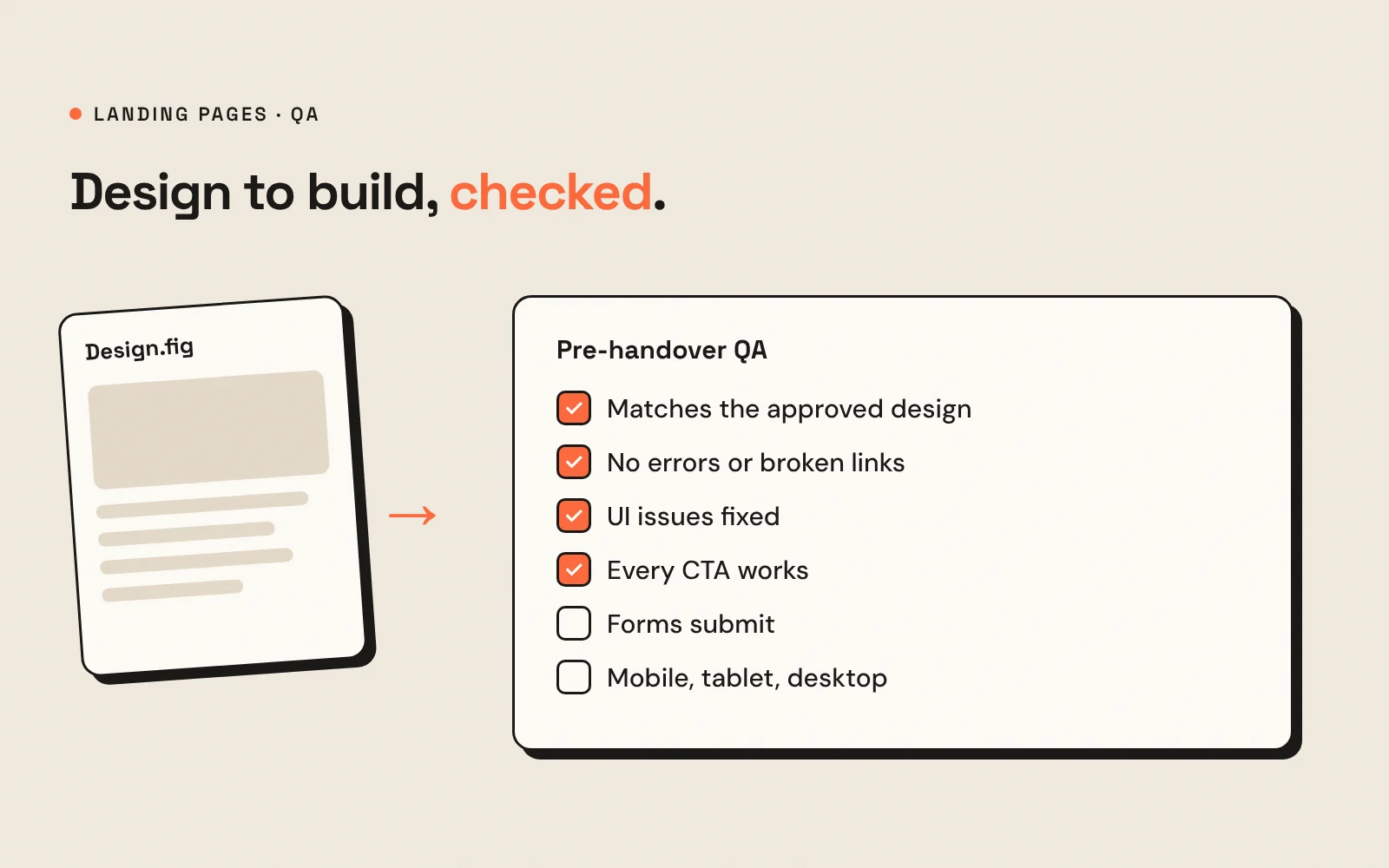
Every page is checked against the same list before the agency sees it:
- Page appearance: the page matches the approved design.
- No errors: no broken links, missing images or console errors.
- UI issues: spacing, alignment, fonts and images are consistent.
- CTAs: every button and link goes where it should.
- Forms: each form submits correctly and shows the thank-you message.
- Responsive testing: the page is checked on mobile, tablet and desktop.
If your agency has its own QA process, send it over. A partner should follow your checklist, not replace it.
6. Review, revisions and handover
The agency reviews the page on a preview link and sends each round of changes as one list. We include 3 to 4 rounds of revisions per project, which is enough for most landing pages when the design was approved before the build. Once it’s signed off, we publish the page or leave it ready to publish, with a short note of what was set up.
How long does it take?
Once the design, copy and account access are ready, a single landing page usually takes about 3 days. Most of the risk to that timeline is in step 1: missing assets, unclear mobile layouts or late tracking details.
Figma to Unbounce: where custom code is needed
Unbounce is fast to work in, but a few things designers often include aren’t available out of the box:
- Tablet layouts. Unbounce gives you a desktop and a mobile layout, but no separate tablet view. When a client wants the page to look right on tablets too, we add custom CSS breakpoints so sections don’t simply stretch the desktop or mobile version.
- Carousels and sliders. There’s no built-in carousel, yet many designs use one for testimonials, logos or product images. We build these with lightweight custom code so they still work with Unbounce’s editor and don’t slow the page down.
- FAQ accordions. Unbounce has no accordion element either, and most landing page designs include an FAQ. We add a small custom accordion that opens and closes smoothly and stays easy for the client’s team to edit.
If your design includes any of these, mention it in the brief. It doesn’t change the timeline much, but it’s good to plan for up front.
Working with an outside developer
If you’re an agency looking for a partner to handle this kind of production, see how we work as a white-label landing page development partner, browse our Unbounce landing page development service, or read how we built a PPC landing page on Unbounce.