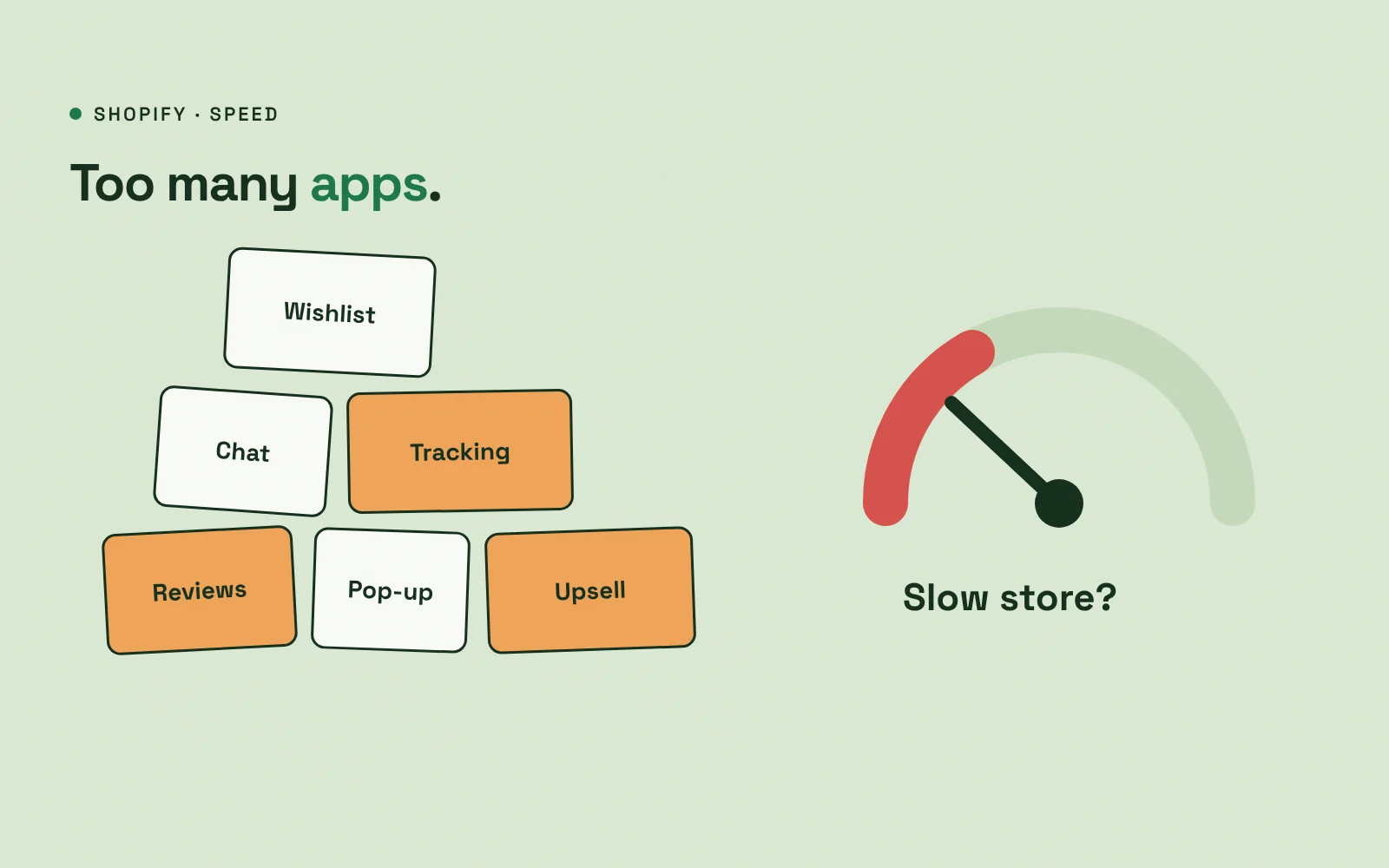
Is your Shopify store slow? Shopify itself is fast and well-hosted, so when a store feels slow, the cause is usually something added on top: large images, heavy theme features or, very often, apps. Each app can add scripts, styles and requests to your pages, and they add up quickly.
Here is how to find the apps slowing your store down and clean them up without breaking anything.
Why is your Shopify store slow? Often, it’s the apps
Many apps work by injecting JavaScript into your storefront: review widgets, pop-ups, chat, upsells, currency converters and tracking tools. Some load on every page even when they are only needed on one. Some keep loading code after you uninstall them, because leftover snippets stay in older themes.
Step 1: Measure before you change anything
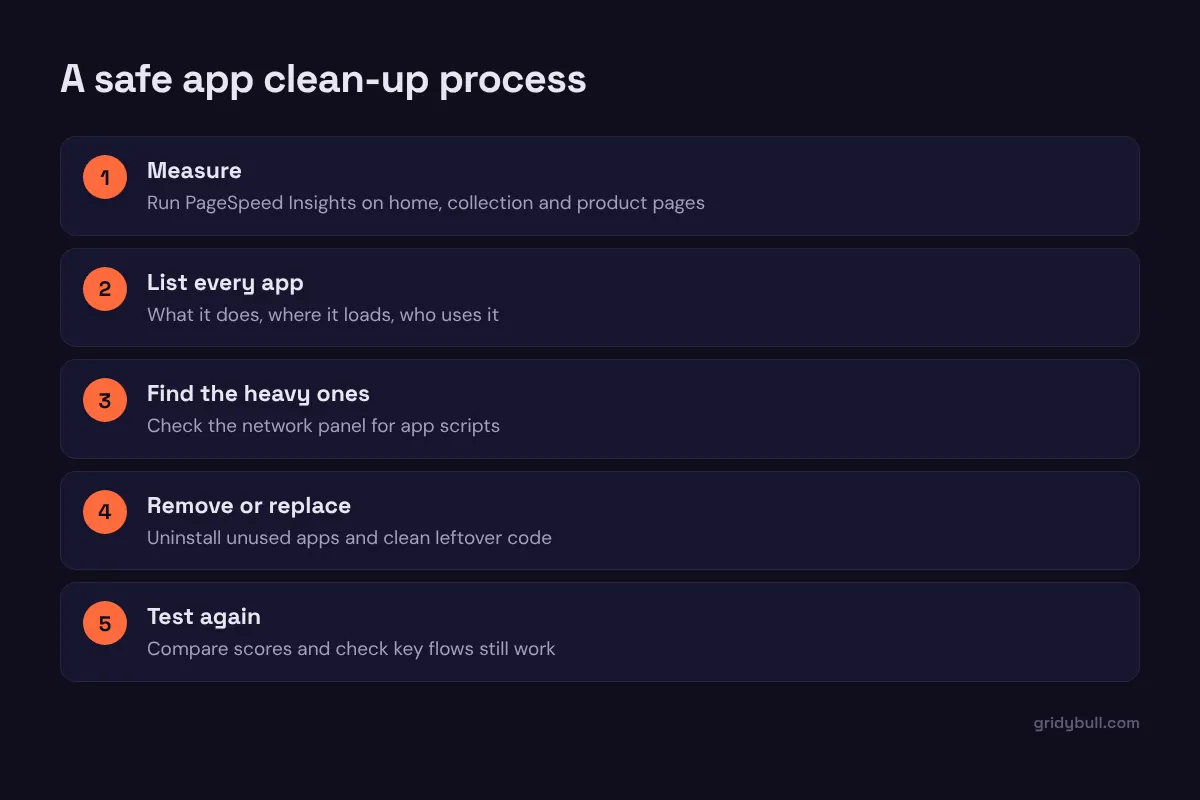
Run Google PageSpeed Insights on your home page, a collection page and your best-selling product page. Note the mobile results. Shopify’s own Web Performance report in the admin also shows how real visitors experience your store over time.
Step 2: List every app
Go to Settings, then Apps and sales channels. For each app, write down:
- What it does and who on your team uses it
- Which pages it affects
- Whether you could live without it, or replace it with a theme feature
Many stores find apps that were installed for a test or a single campaign and then forgotten.
Step 3: Find the heavy ones
Open your store in Chrome, open DevTools (right-click, then Inspect), go to the Network tab and reload the page. Sort by size or time. Requests from app domains, or files with app names in them, show which apps load the most on that page. The Coverage tab can also reveal large scripts that are barely used.
Step 4: Remove, replace or limit
- Uninstall apps you no longer use. Then check your theme code for leftover snippets, especially in older themes. Modern theme app extensions are removed more cleanly.
- Replace apps with theme features. Many current Shopify themes include features that once required apps, such as color swatches, size charts or announcement bars.
- Consolidate. Three apps doing pop-ups, upsells and reviews can sometimes be replaced by one well-built app.
- Limit where apps load. Some apps let you choose the pages they appear on.
Step 5: Clean up the other usual suspects
While you are improving speed, check:
- Images: upload sensibly sized images; Shopify serves optimized versions, but huge originals still cost time in some places.
- Video: avoid autoplay background video in the hero, especially on mobile.
- Fonts: limit the number of font families and weights.
- Sliders: large hero sliders add weight and rarely help sales.
Step 6: Test everything that matters
After each change, test the key flows: add to cart, checkout, discount codes, subscriptions and any custom features. Then re-run the same speed tests and compare. Make changes one at a time on a duplicate theme where possible, so you can roll back quickly.
Keep it from happening again
- Trial new apps on a duplicate theme first.
- Review your app list every quarter.
- Ask app developers how their app affects storefront speed before installing.
A faster store feels better to shop in, especially on phones. App clean-ups are one of the quickest ways to get there.